PotoSales practical guides
How to Turn a Customer PDF Purchase Order into a WooCommerce Order
By PotoSales · Updated 10 October 2026 · Public release 0.3.3
A customer has emailed a purchase order. Your next job is to enter a sales order in WooCommerce. PotoSales helps prepare that order from the PDF, while your team checks the customer, products and amounts before creating it.
This walkthrough describes WordPress.org version 0.3.3. It uses fictional documents, not a customer case study or an accuracy benchmark.
Start with the right kind of document
Use an incoming purchase order from your customer. A supplier invoice, a stock-replenishment PO and a PDF invoice generated from an existing WooCommerce order are different workflows. Upload one PO per file: PDF, JPG/JPEG or PNG, no more than 5,000,000 bytes; PDFs can have up to five pages.
1. Prepare your store
Install PotoSales Order Entry for WooCommerce from WordPress.org. A store administrator opens the plugin and starts the trial after reviewing the service terms and processing information. No API key or service address needs to be entered. See the installation requirements first.
Your WooCommerce catalogue should contain the products you want to sell. For a repeat buyer, a saved customer profile helps keep their product-code correspondences separate from other buyers. A one-off order can use a guest customer.
2. Upload and compare
Open the plugin in your WooCommerce dashboard, choose Upload purchase order and select the PDF. When extraction finishes, open the draft. Keep the source document visible while reviewing it. Extraction alone does not create an order.
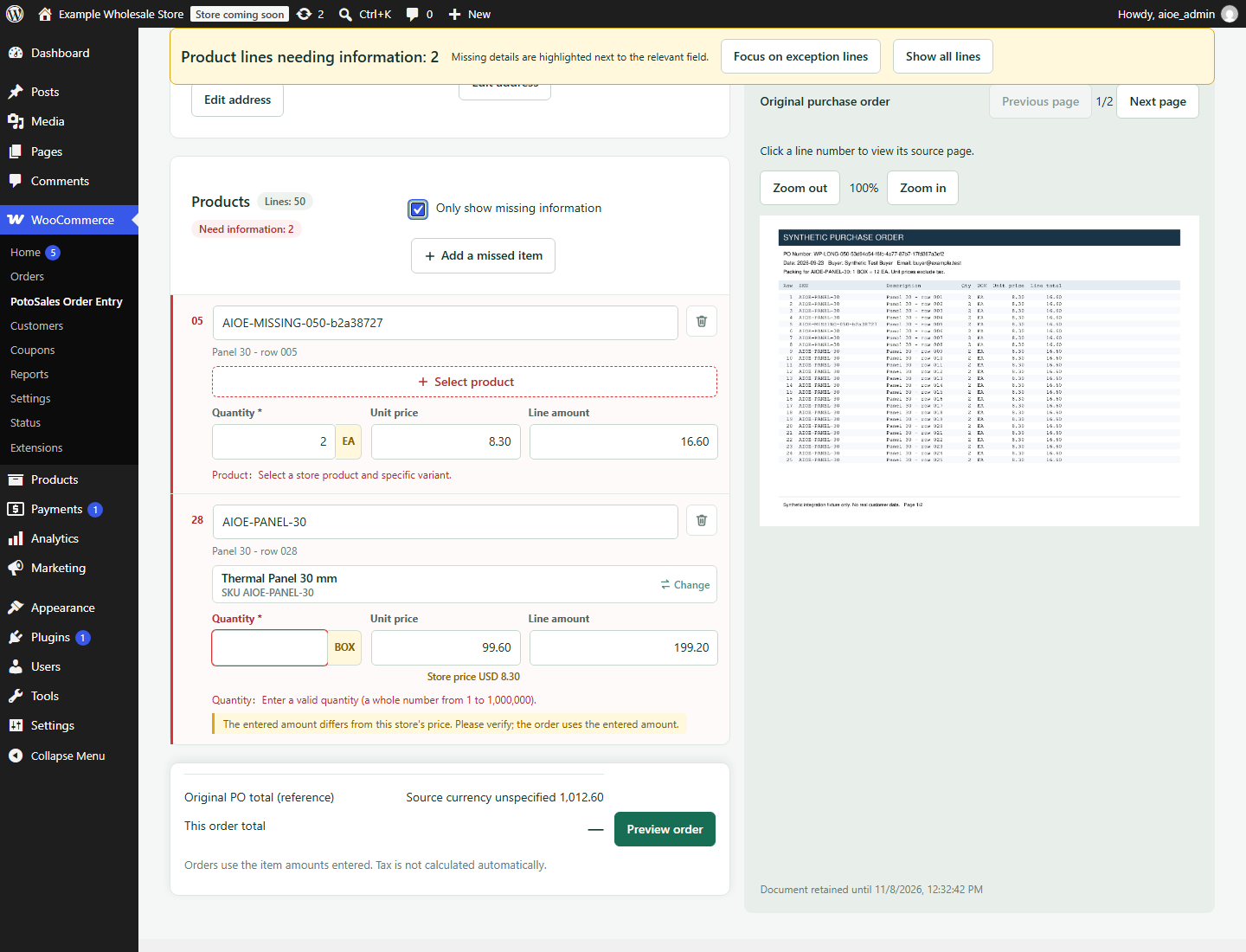
3. Confirm the customer and each product
Check the suggested customer or select an existing profile. In 0.3.3, an email can match a saved customer; do not rely on a buyer name alone. Check each product and choose a specific variation where applicable. If the customer's item code differs from your SKU, select the correct product and enable Save product mapping to reuse that correspondence after successful order creation.
4. Review the amounts
Check quantities, selling units, currency, unit prices and line amounts. An entered line amount wins, including zero. Only an empty line amount is calculated as quantity multiplied by unit price. The plugin does not automatically add or extract tax. It does not convert currencies or infer how many individual items are inside a case.
For example, 4 panels at USD 12.50 and 2 rolls at USD 8.00 total USD 66.00. Confirm those figures against the source; do not assume the catalogue price must replace the customer's agreed price.
5. Preview, confirm and open the order
Preview the draft, return to editing if needed, then explicitly confirm creation. Open the resulting WooCommerce order and continue your normal payment and fulfilment process. A new order is pending payment: creating it does not charge the buyer or mark it paid.
Try it with a safe sample
Use the English demonstration and sample purchase order in a test store. Reconcile the created lines and total with the sample. For your own documents, measure how much review and correction they need before deciding whether the workflow is worthwhile.
Try one complete order.
Upload, review and confirm in your own WooCommerce store.